Get started — Microsoft Teams
You use Microsoft 365, so you can talk to Brain right inside Microsoft Teams — no new app, no new login. Follow these steps.
Step 1 — Find Brain in Teams
Section titled “Step 1 — Find Brain in Teams”NitroxBrain is published on the Microsoft Teams app store, so it’s either already there or one click away:
- Already installed? In the left rail, click ••• (or Apps) and choose NitroxBrain — or use the search bar at the top, type NitroxBrain, and open the chat.
- Not there yet? Open Apps in the left rail, search for NitroxBrain, and click Add. If your organisation restricts app installs, your Teams administrator has to approve it first.
You land in a 1:1 chat with Brain. Say “hello” — Brain replies within a few seconds.
Step 2 — Connect Microsoft (one link)
Section titled “Step 2 — Connect Microsoft (one link)”Type:
Connect Microsoft
Brain replies with a [Connect Microsoft] link. Click it → you land on Microsoft’s own consent screen listing the exact permissions. Approve, and you’re sent back with a confirmation.
That single connect covers Outlook Mail, Calendar, OneDrive, Word, Excel, and PowerPoint — you don’t connect each one separately.
Step 3 — (Optional) Connect your other tools
Section titled “Step 3 — (Optional) Connect your other tools”Anyone can also connect, by asking the same way:
Connect HubSpot— contacts, deals, companies (opens HubSpot’s consent screen)Connect Trello— boards and cards (opens Trello’s own approval page — a slightly different screen)Connect Oura— your ring’s sleep / readiness / activity data
Connect only what you need, skip the rest.
Step 4 — Ask for something real
Section titled “Step 4 — Ask for something real”Pick whatever fits your day:
Summarise my unread mail from the last 2 days that I haven’t replied to.
Create a timesheet for Tuesday’s training and put it in my OneDrive.
What’s on my calendar next week? Any travel conflicts?
What’s the weather in Marseille this weekend?
Brain reads from your connected accounts, does the work, and replies — usually within 5–30 seconds, with a link to anything it created.
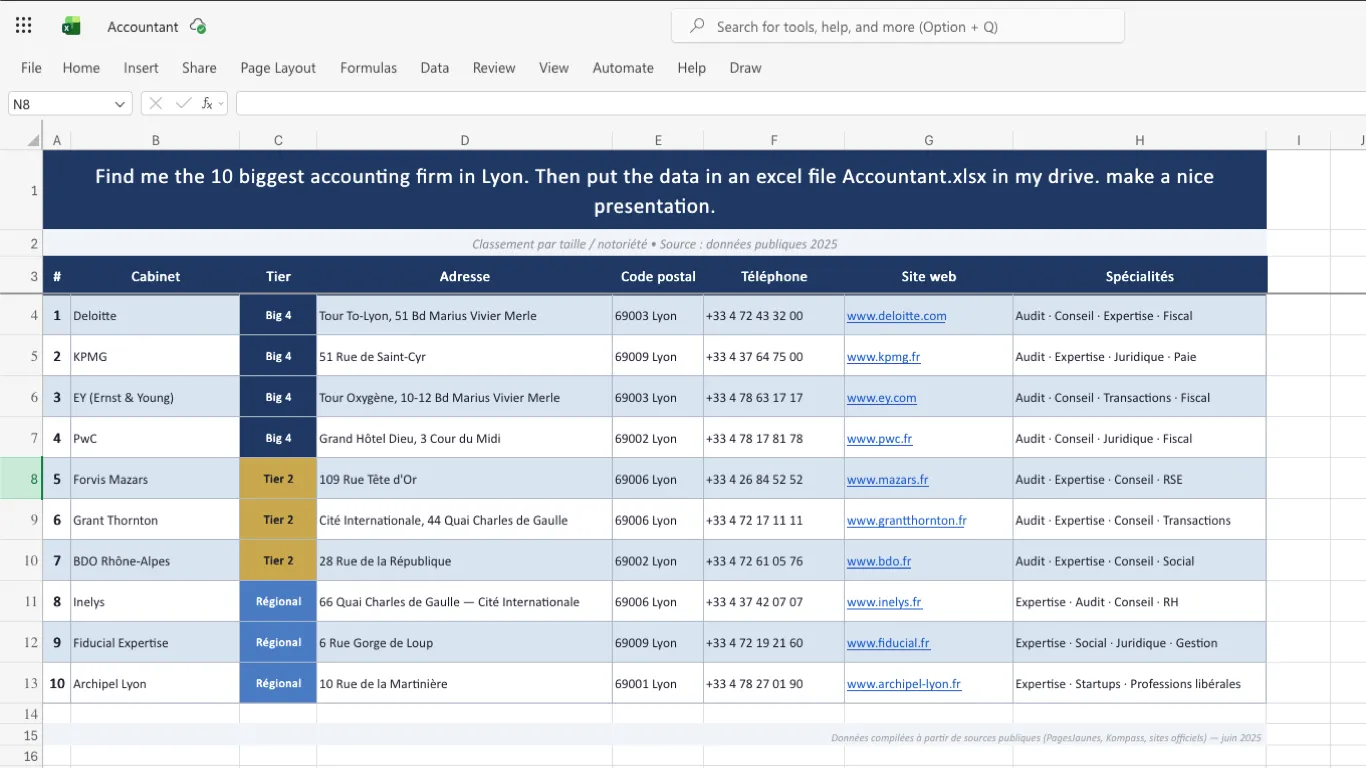
A real example — one prompt, a finished file. From a single message:
Find me the 10 biggest accounting firms in Lyon. Then put the data in an Excel file
Accountant.xlsxin my drive. Make a nice presentation.
Brain researched the firms, built the spreadsheet, formatted it, and saved it to OneDrive — all on its own:
Step 5 — Send files and voice 📎
Section titled “Step 5 — Send files and voice 📎”Click the 📎 paperclip under the message box to attach a file, then ask Brain about it in the same message:
- Documents — PDF, Word, Excel, PowerPoint. “Summarise this contract and flag anything unusual.”
- Images / screenshots — Brain reads charts, receipts, photos. “What does this error screen mean?”
- Voice — attach an audio file and Brain transcribes it.
Good to know
Section titled “Good to know”- Disconnect anytime — Brain never holds your password. Revoke from Microsoft at myapps.microsoft.com → NitroxBrain → ⋯ → Remove app. (Trello + HubSpot revoke from their own settings.)
- Plain English always works — there are no commands to memorise; just ask.
- Need help? Ask Brain “help”, or see Troubleshooting.